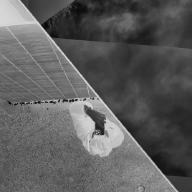
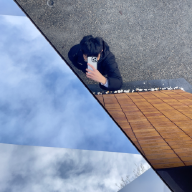
3D Gaussian Splatting Test#
This page showcases a 3D Gaussian Splatting model inside a Hugo blog.
How to Create the Shortcode#
Step 1: Create the Shortcode File#
In the root of your Hugo site, locate the layouts/_shortcodes/ directory (create it if needed) and add a new file named gaussian-splat.html.
_shortcodes (with an underscore), not shortcodes!Step 2: Copy the Code#
Copy the full code snippet into the gaussian-splat.html file.
You can visit the reference page to view the complete snippet and paste it into the new file.
Step 3: Prepare Your Model File#
Place your .ply or .splat file inside the article directory:
content/
└── your-article/
    ├── index.md          ← your article file
    └── models/           ← create this folder
        └── your-model.ply ← your 3DGS model
Step 4: Restart the Hugo Server#
When you add this feature for the first time, restart the Hugo development server:
- Press
Ctrl + Cin the terminal to stop the server - Run
hugo serveragain to start it - Refresh the browser page
Interaction Guide#
- 🖱️ Left mouse drag: rotate the view
- 🔍 Scroll wheel: zoom in/out
- ✋ Right mouse drag: pan
SAM3D Splat Model Showcase#
Default angle:
Custom angle example (side view):
Coordinate adjustment example (use these when the rotation axis feels off):
Technical Notes#
This viewer relies on the @mkkellogg/gaussian-splats-3d library, which renders 3D Gaussian Splatting models directly in the browser.
Supported formats:
.ply– raw output from 3DGS training.splat– compressed format (smaller file size)
Things to keep in mind:
- Requires a browser with WebGL2 support
- Larger models can take longer to load
- Performance depends on the GPU
Fixing axis issues (when the rotation feels stuck):
If rotations behave oddly, the axis convention may be mismatched (Y-up vs. Z-up). Try the following:
- Use a predefined coordinate system (easiest):
{{< gaussian-splat id="demo" src="models/model.ply" coordinateSystem="z-up" >}}
- Manually rotate the model (for precise control):
{{< gaussian-splat id="demo" src="models/model.ply"
    rotateX="90"
    rotateY="0"
    rotateZ="0" >}}
Common fixes:
- Z-up model but need Y-up:
rotateX="-90"orcoordinateSystem="z-up" - Model is upside down:
rotateX="180" - Left/right inverted:
rotateY="180"
Other adjustments:
- Auto fit: automatically compute the bounds and adjust the camera
{{< gaussian-splat id="demo" src="models/model.ply" autoFit="true" >}}
- Manual position/scale tweaks:
{{< gaussian-splat id="demo" src="models/model.ply"
    modelX="0" modelY="0" modelZ="0"
    modelScale="1" >}}
Custom camera angles:
cameraX,cameraY,cameraZ: camera position (default: 0, 0, 5)lookAtX,lookAtY,lookAtZ: target point (default: 0, 0, 0)cameraUpX,cameraUpY,cameraUpZ: up direction (default: 0, -1, 0)
Model transform parameters:
modelX,modelY,modelZ: positional offset (default: 0, 0, 0)modelScale: scale factor (default: 1)rotateX,rotateY,rotateZ: rotation angles in degrees (default: 0, 0, 0)coordinateSystem:"y-up"or"z-up"(default:"y-up")autoFit: auto-fit the model and camera (default: false)